Understand what a rebase rewrites
A Git interactive rebase replays a series of commits one at a time and lets you decide what happens to each: keep it, reword it, fold it into the previous one, drop it or move it. Git never edits an existing commit. It creates new ones, so every replayed commit gets a new ID.
A commit ID is a hash of the commit’s content, and that content includes the ID of its parent. Change the parent and the ID changes, even when the files are identical. Pro Git notes that every commit in the range is rewritten, along with all of its descendants.
The examples use a throwaway repository called orbit-api. The branch feature/export holds three local commits on top of main, and you pushed it to origin as a backup. Your IDs will differ, because they depend on the author, the date and the content.
git log --oneline --graph --decorate* 7bfd3fa (HEAD -> feature/export, origin/feature/export) feat: add export progress events
* a98537c feat: stream large exports
* 0d50b71 feat: add CSV export endpoint
* 9fd61d6 (origin/main, main) chore: init orbit-apiThe goal: fold the second commit into the first and give the third a clearer message.
Choose the commits to edit
git rebase -i (--interactive) takes the commit just before the first one you want to change. HEAD~3 means three commits back from the current one, so this covers the last three commits:
git rebase -i HEAD~3You can also pass a branch name: git rebase -i main selects every commit of your branch since it left main. Git opens your editor with one line per commit, oldest first. That is the reverse of git log, because it is the order in which Git replays them.
pick 0d50b71 feat: add CSV export endpoint
pick a98537c feat: stream large exports
pick 7bfd3fa feat: add export progress events

# Rebase 9fd61d6..7bfd3fa onto 9fd61d6 (3 commands)
#
# Commands:
# p, pick <commit> = use commit
# r, reword <commit> = use commit, but edit the commit message
# e, edit <commit> = use commit, but stop for amending
# s, squash <commit> = use commit, but meld into previous commit
# …
I produced the outputs with Git 2.30, driving the editors with GIT_SEQUENCE_EDITOR and GIT_EDITOR; in your terminal, Git opens your editor.
In GitMini, right-click a commit and choose Interactive rebase from here… to start at that commit. You can also right-click another branch while yours is checked out and choose Interactive rebase of “feature/export” on “main”…; that base must already be in your branch’s history, because GitMini rewrites the commits after it and does not move them onto a newer main (the plain Rebase dialog does that).
The list opens in the central area as Interactive rebase, with the commits oldest first. Both entries appear only when HEAD is on a branch (otherwise the panel says “The interactive rebase requires being on a branch.”), and the panel refuses ranges that contain merge commits: “Range containing merges: not supported in v1.”
Use pick, reword, squash and commit ordering
Each line starts with an action. Change that word, save, and Git runs the list from top to bottom.
| Action | What it does | GitMini label |
|---|---|---|
pick |
Keeps the commit as it is | pick — keep |
reword |
Keeps the content, lets you edit the message | reword — edit message |
squash |
Melds the commit into the previous one and combines both messages | squash — merge (combined message) |
fixup |
Same as squash, but discards this commit’s message | fixup — merge (message ignored) |
drop |
Removes the commit | drop — delete |
Git also has edit, which stops so you can amend a commit; GitMini does not offer it. Reordering needs no keyword: you move the line, as Pro Git shows. The reordering guide goes further.
For the example, change the todo list to this:
pick 0d50b71 feat: add CSV export endpoint
squash a98537c feat: stream large exports
reword 7bfd3fa feat: add export progress events
Git first opens an editor for the squashed commit, prefilled with both messages. Replace them with one line, here feat: add streaming CSV export endpoint. It then opens the editor for the reword line, and the third message becomes feat: emit progress events during export. Git also prints a Rebasing (n/m) counter, left out here:
[detached HEAD 10c3a07] feat: add streaming CSV export endpoint
…
[detached HEAD 2d3db63] feat: emit progress events during export
…
Successfully rebased and updated refs/heads/feature/export.
The graph now shows both versions (--all keeps the remote branch visible):
git log --oneline --graph --decorate --all* 2d3db63 (HEAD -> feature/export) feat: emit progress events during export
* 10c3a07 feat: add streaming CSV export endpoint
| * 7bfd3fa (origin/feature/export) feat: add export progress events
| * a98537c feat: stream large exports
| * 0d50b71 feat: add CSV export endpoint
|/
* 9fd61d6 (origin/main, main) chore: init orbit-apiNo new commit shares an ID with an old one, although the files are the same. The previous tip stays reachable as feature/export@{1}, and the two tree hashes match, so the final content is identical:
git rev-parse 'feature/export@{1}^{tree}' 'feature/export^{tree}'818593d01a34e4142e75d2be459e51852e6783b0
818593d01a34e4142e75d2be459e51852e6783b0For a single commit, amending it is shorter. GitLab’s guide recommends the interactive rebase for tidying your own local history. Squashing is detailed in the squash guide.
GitMini offers the same choices in one panel:
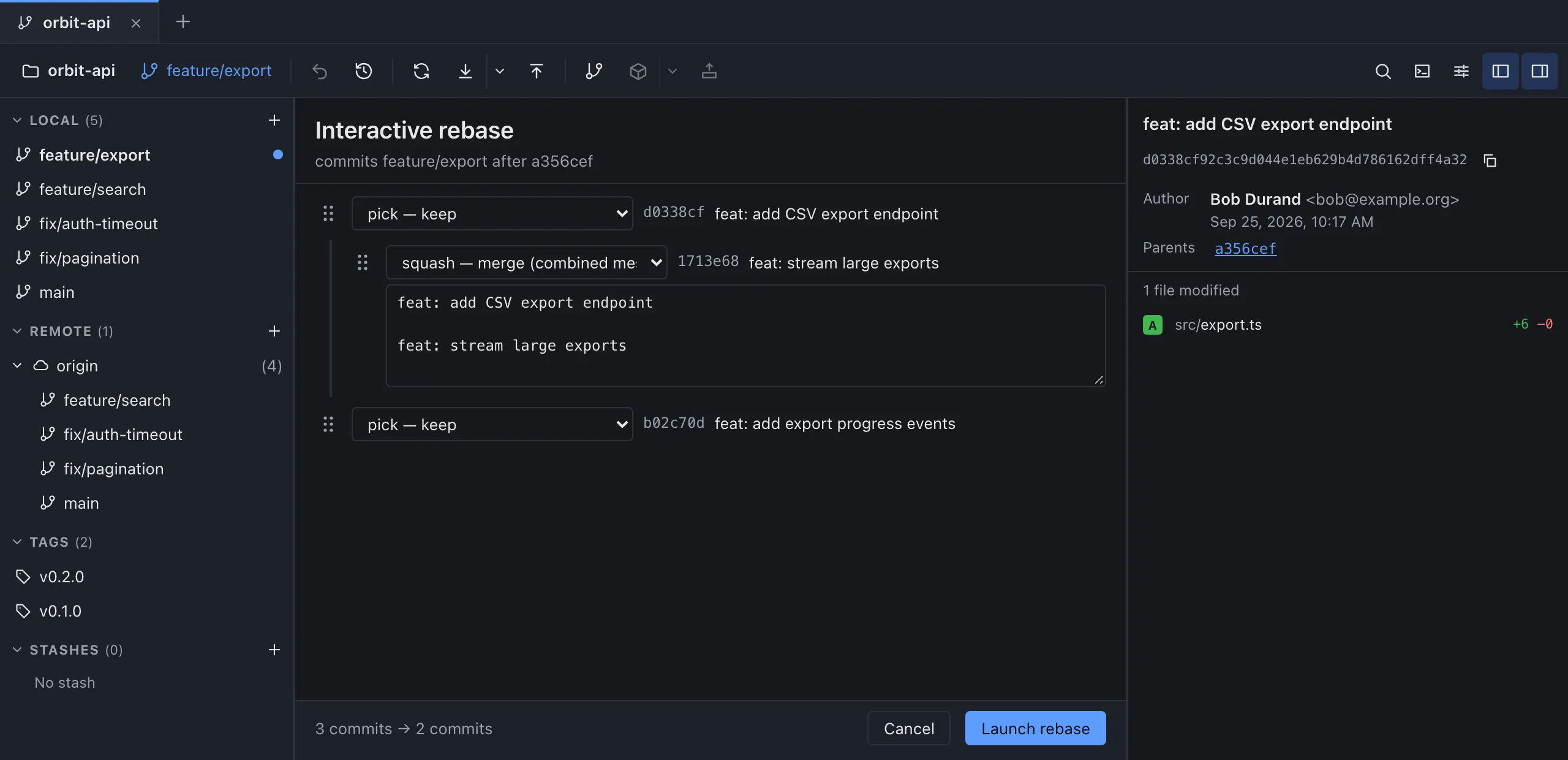
A squash or fixup line is indented under the commit it joins, and the last one of the group carries a text field with the combined message. The handle on the left drags a commit, and the footer previews the count, for example “3 commits → 2 commits”, before you click Launch rebase. GitMini refuses lists that start with a squash (“The first commit cannot be merged with a previous commit.”) or drop every commit (“At least one commit must be kept.”).
Continue or abort after a conflict
A conflict stops the replay. A colleague’s commit, feat: add users route, reaches main and changes the same line of src/app.ts as your first commit. You rebase onto main and keep the list unchanged:
git rebase -i mainAuto-merging src/app.ts
CONFLICT (content): Merge conflict in src/app.ts
error: could not apply 10c3a07... feat: add streaming CSV export endpoint
Resolve all conflicts manually, mark them as resolved with
"git add/rm <conflicted_files>", then run "git rebase --continue".
…
To abort and get back to the state before "git rebase", run "git rebase --abort".
Could not apply 10c3a07... feat: add streaming CSV export endpointGit 2.54 prefixes the advice lines with hint: and writes each commit subject after a #, here and in the todo list. The rebase is paused on the first commit. git status -sb lists UU src/app.ts, and the file contains the conflict markers:
<<<<<<< HEAD
export const routes = ["/health", "/users"];
=======
export const routes = ["/health", "/export"];
>>>>>>> 10c3a07 (feat: add streaming CSV export endpoint)
You have three ways out. git rebase --abort returns the branch to where it was before you started; in the example, git log shows the tip back at 2d3db63. git rebase --skip leaves out the commit being applied. To resolve, keep both routes in the file, stage it and continue (I set GIT_EDITOR=true so Git accepts the message without opening an editor):
git add src/app.ts
git rebase --continue
[detached HEAD 1d73c42] feat: add streaming CSV export endpoint
…
Successfully rebased and updated refs/heads/feature/export.When a rebase stops in GitMini, the panel closes and a banner names the rebase and the commit being applied (“conflict by applying …”) with the number of files in conflict. Continue stays disabled until you resolve and stage the files (tooltip: “Resolve and stage the conflicting files”). Skip leaves out the commit being applied. Abort asks for confirmation, “Back to status before the rebase? Ongoing resolutions will be lost.”, and restores the branch.
Verify the result before sharing
Compare the old and new tips: after a rebase onto a moved main, only what main brought should differ, here the line from feat: add users route:
git diff --stat 'feature/export@{1}' feature/export src/app.ts | 2 +-
1 file changed, 1 insertion(+), 1 deletion(-)I use @{1} rather than ORIG_HEAD, which is not guaranteed to still point at the old tip at the end of a rebase; the git-rebase documentation points to the branch reflog. The graph reading guide helps when the picture gets busy.
The last check is whether anyone has your old commits. Here, origin/feature/export still has them, so Git reports that the two sides have diverged, with three different commits on each side.
git statusOn branch feature/export
Your branch and 'origin/feature/export' have diverged,
and have 3 and 3 different commits each, respectively.
…A plain git push is rejected as non-fast-forward. Pro Git warns against including commits already pushed to a central server, since that gives other developers an alternate version of the same change. If the branch is yours alone, use the lease form, which, according to the git-push documentation, protects against losing work that someone else pushed in the meantime (a plain --force does not):
git push --force-with-lease…
To ../origin.git
+ 7bfd3fa...7c49854 feature/export -> feature/export (forced update)GitMini flags this risk before you start. In the interactive list, each commit that is already on a remote shows a cloud icon (tooltip: Already pushed), and the footer warns: “3 commits in this range are already on a remote. A force push (with lease) will be required and may affect your collaborators.” When you push a branch that has diverged from its upstream, GitMini asks you to confirm a Forced Push with a Force push button, then pushes with lease. After the rebase, a toast offers Undo for a moment, and the previous state stays in the reflog.
To choose between merging and rebasing a branch, see merge or rebase.
Sources
- Pro Git: Rewriting History, consulted on October 4, 2026.
- Pro Git: Réécrire l’historique (French edition), consulted on October 4, 2026.
- GitLab: interactive rebase guide (page in French), consulted on October 4, 2026.
- Git documentation: git-rebase, consulted on October 4, 2026.
- Git documentation: git-push, consulted on October 4, 2026.
- GitMini product README, consulted on October 4, 2026.