Working tree, index and commit
git add does not write anything to your history. It copies the current content of a file into the index, also called the Git staging area, and git commit builds the next commit from that index, not from the files on your disk. Staging is how you choose what goes into a commit and what waits.
Three places are involved:
| Place | What it holds | Look at it with |
|---|---|---|
| Working tree | The files on disk, as you edit them | git diff (compared with the index) |
| Index | The snapshot the next commit will record | git diff --cached (compared with HEAD) |
Last commit (HEAD) |
The latest saved snapshot | git show |
The examples below use a throwaway repository named orbit-api that has one commit. Since then, you modified a tracked file, src/search.ts, to hide archived projects from search results, and you created a new file, scripts/seed.ts. The outputs come from Git 2.23; Git 2.30 and 2.54 print the same text for every command in this guide. This is what Git reports:
git statusOn branch main
Changes not staged for commit:
(use "git add <file>..." to update what will be committed)
(use "git restore <file>..." to discard changes in working directory)
modified: src/search.ts
Untracked files:
(use "git add <file>..." to include in what will be committed)
scripts/
no changes added to commit (use "git add" and/or "git commit -a")Nothing is staged yet. src/search.ts is tracked and differs from the index. scripts/seed.ts is untracked: Git does not know it, so it lists the folder scripts/ instead of the file. A git commit right now would find nothing to commit.
One detail matters later. git add captures the file as it is at that moment. If you edit the file again afterwards, the new edits stay in the working tree, out of the commit, until you run git add on the file again.
Stage files with git add
To stage the changes of one file, name it, then ask for the short status:
git add src/search.ts
git status -s
M src/search.ts
?? scripts/The short format has two columns. The first describes the index, the second the working tree. Before the git add, the same command printed M src/search.ts, with the letter in the second column: modified, not staged. Now the letter sits in the first column: staged. ?? still marks the untracked folder.
The long form spells out the same state with section names:
git statusOn branch main
Changes to be committed:
(use "git restore --staged <file>..." to unstage)
modified: src/search.ts
Untracked files:
(use "git add <file>..." to include in what will be committed)
scripts/Changes to be committed is the index. Changes not staged for commit and Untracked files describe the working tree. The hint under the first section is the command you will use to take a file back out, which comes up below.
To stage everything at once, new files included, use git add -A:
git add -A
git status -s
A scripts/seed.ts
M src/search.tsscripts/seed.ts is now A: added to the index. From the root of the repository, git add . gives the same result. The two differ in a subfolder. Run from src/, git add . stages only what changed under src/, while git add -A stages the whole working tree. git add -u is narrower: it stages changes to tracked files and ignores new ones.
| Command | New files | Tracked files, deletions included | Scope |
|---|---|---|---|
git add . |
Yes | Yes | Current folder and below |
git add -A |
Yes | Yes | Whole working tree |
git add -u |
No | Yes | Whole working tree |
Deletions count as changes too. After you delete a tracked file, git add -A stages the deletion, and git status -s shows it as D in the first column.
None of them asks for confirmation. Read git status before using the broad forms, or you may stage a file you meant to leave out.
Check what the next commit will contain
git diff --cached shows the index compared with HEAD: exactly what git commit would record. --staged is a synonym.
git diff --cacheddiff --git a/scripts/seed.ts b/scripts/seed.ts
new file mode 100644
index 0000000..609fd8a
--- /dev/null
+++ b/scripts/seed.ts
@@ -0,0 +1,3 @@
+import { buildIndex } from "../src/search";
+
+export const demo = buildIndex([]);
diff --git a/src/search.ts b/src/search.ts
index 24c85be..d0cb9d6 100644
--- a/src/search.ts
+++ b/src/search.ts
@@ -23,5 +23,7 @@ export function search(index: Map<string, Project[]>, query: string): Project[]
hits.set(project.id, project);
}
}
- return [...hits.values()].sort((a, b) => a.name.localeCompare(b.name));
+ return [...hits.values()]
+ .filter((hit) => !hit.archived)
+ .sort((a, b) => a.name.localeCompare(b.name));
}Each file gets a header, then one or more blocks that start with @@. Lines starting with + are added, lines starting with - are removed, and unmarked lines are context. The guide to git diff --staged reads these lines one by one.
Plain git diff compares the working tree with the index, and it prints nothing here because everything is already staged. If it prints something after a git add, the file has changes in both places, which git status -s shows as MM. To stage only one block of such a file, use git add -p.
Prepare separate changes
A commit reads best when it holds one idea. The search fix and the seed script are two ideas, so take the script out of the index:
git restore --staged scripts/seed.ts
git status -s
M src/search.ts
?? scripts/The file is still on disk, untouched. git restore --staged only removes it from the index, which makes it untracked again. To empty the index in one go, run git restore --staged . from the root of the repository: every file leaves the index and keeps its edits in the working tree. Git 2.23, the version used for these examples, already includes the command, and git status suggests it whenever something is staged.
Now commit the fix:
git commit -m "Hide archived projects from search results"[main 3735e86] Hide archived projects from search results
1 file changed, 3 insertions(+), 1 deletion(-)Then stage the script, commit it, and list the history:
git add scripts/seed.ts
git commit -m "Add a seed script"
git log --oneline
[main c7aeb19] Add a seed script
1 file changed, 3 insertions(+)
create mode 100644 scripts/seed.ts
c7aeb19 Add a seed script
3735e86 Hide archived projects from search results
f96f13a Add project searchYour commit identifiers will differ from the ones above. The result is two commits with one purpose each.
Three situations come up right after this. If you forgot a file or mistyped the message, amend the last commit. If a commit is already made and you want to see what it contains, the guide to git show explains the output. And if you want to reorder, merge or reword several commits before sharing them, use an interactive rebase.
Use a visual staging view
GitMini shows the same state without typing. After the edits above, select the // WIP row in the graph: the panel on the right lists src/search.ts and scripts/seed.ts under Unstaged. The Staged section says “Nothing staged”. GitMini lists the new file by its own path, scripts/seed.ts, with a U badge for untracked, while a modified file such as src/search.ts gets an M.
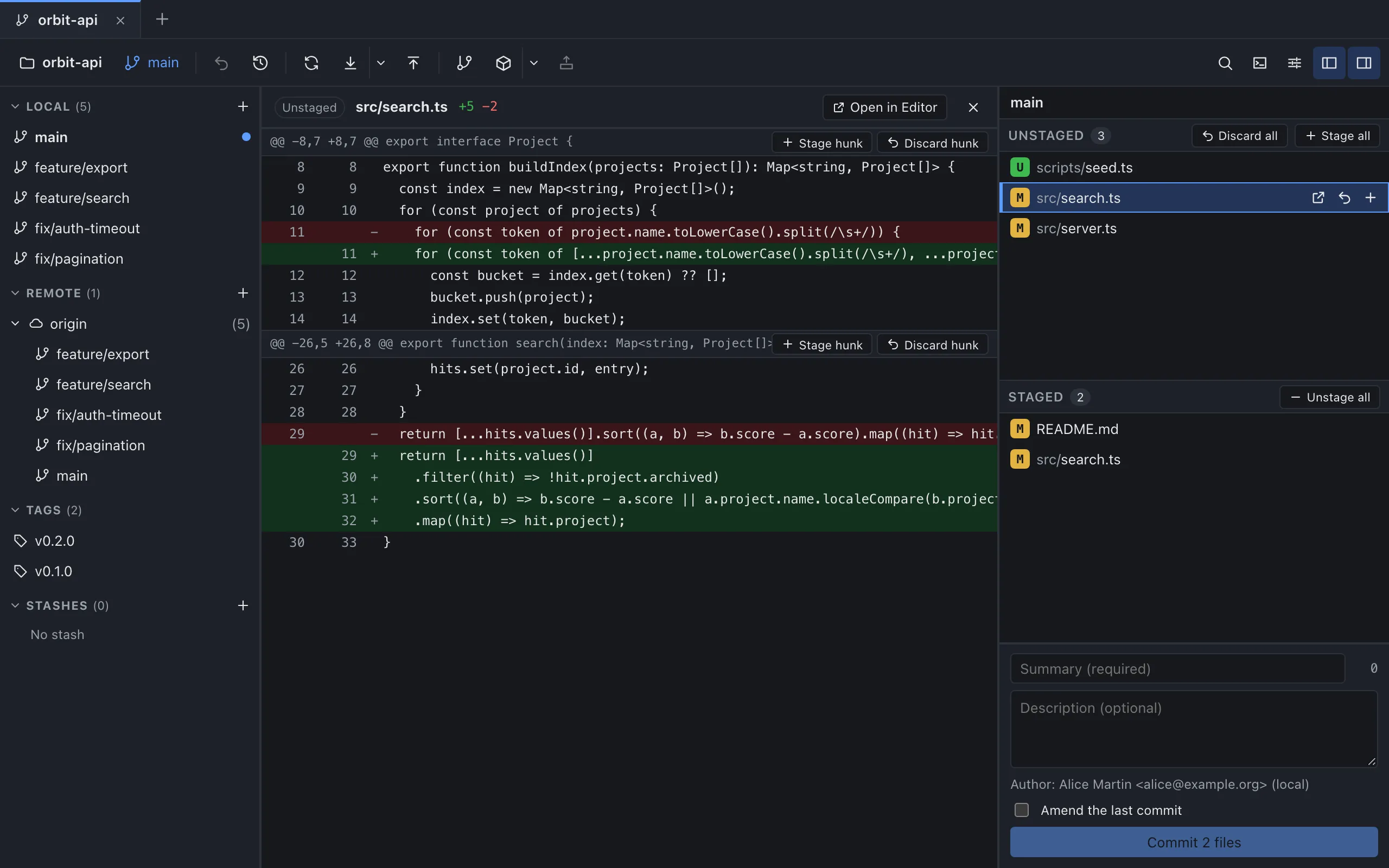
| What you want | In Git | In GitMini |
|---|---|---|
| See the state | git status |
Unstaged and Staged sections |
| Stage one file | git add <file> |
Stage icon on the file row, shown on hover |
| Stage everything | git add -A |
Stage all |
| Unstage one file | git restore --staged <file> |
Unstage icon on the file row, shown on hover |
| Unstage everything | git restore --staged . |
Unstage all |
| Review the next commit | git diff --cached |
Click a file in Staged to open its Staged diff |
Stage src/search.ts, and the row moves to Staged. The commit form below the lists asks for a summary, with a Summary (required) field and an optional description. The button reads Commit 1 file. It stays disabled, with a tooltip such as “No staged files” or “Enter Summary”, until a summary is typed and at least one file is staged. Stage scripts/seed.ts afterwards and make the second commit the same way.
Be careful with Discard all and Discard changes, next to the stage buttons. They are not unstage actions: they throw changes away, GitMini warns that they cannot be restored from the app, and untracked files are deleted from the disk.
Sources
- Git documentation: git-add, consulted on October 4, 2026.
- Git documentation: git-diff, consulted on October 4, 2026.
- Pro Git: Interactive Staging, consulted on October 4, 2026.
- GitMini product README, consulted on October 4, 2026.